Security
Sign-in with a second factor
Setup, sign-in, recovery codes, new device and reset.
With a second factor the portal asks, after the password, for a six-digit code from an authenticator app on your smartphone (e.g. Microsoft Authenticator, Google Authenticator, FreeOTP or 2FAS). Hospitals always require it, other organisations when their administrators switch it on – you then set it up once at your next sign-in.
How to set up the second factor
- Open the user menu at the top right and then Security (second factor). Under Second factor you see the status (1). Click Start setup (2).
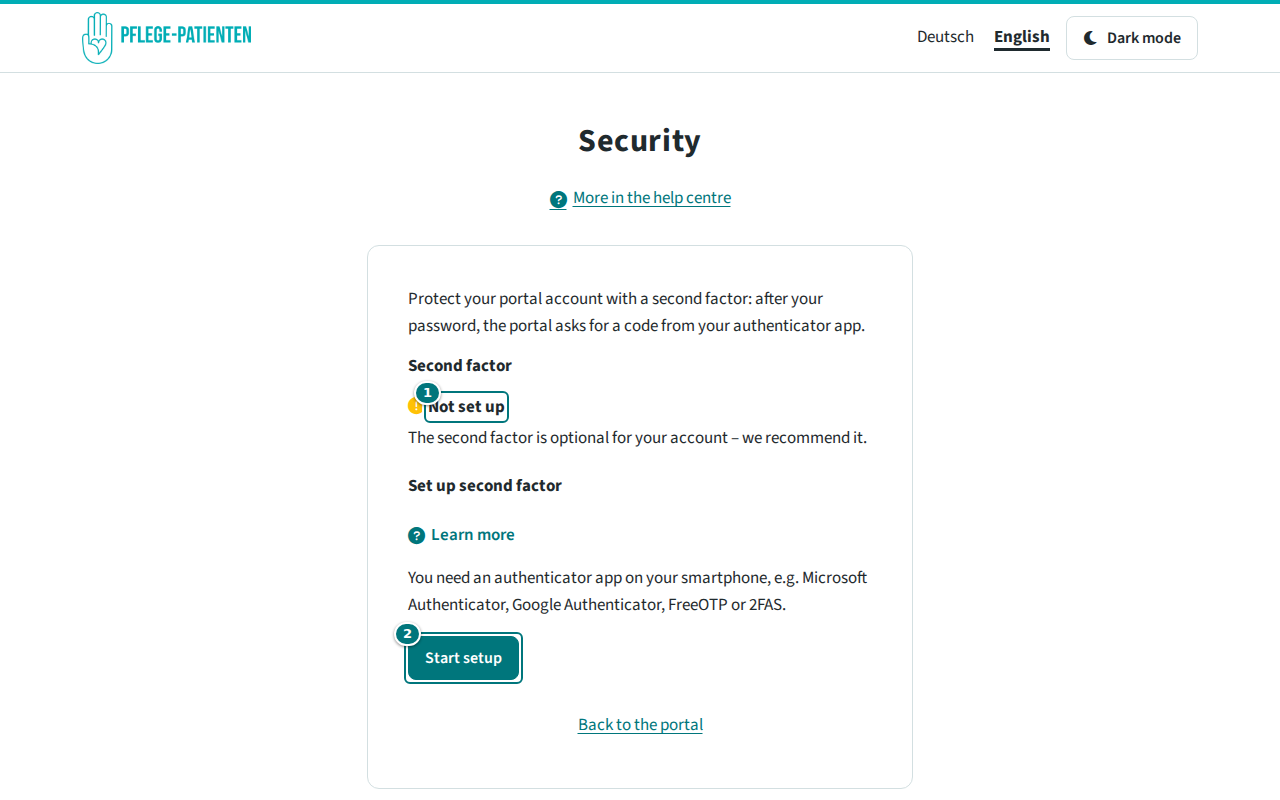
Starting the setup - Open your authenticator app and scan the QR code – or enter the key manually. The QR code is only valid for this setup.
- Enter the six-digit code from the app and click Confirm code.
- You see Your recovery codes – ten codes, each valid once in case the app is not available. They are only shown now: print them or save them in a password manager. Then click Codes saved – back to ‘Security’.
If your organisation requires the second factor, the portal guides you through the same steps right after signing in (Set up second factor → Start setup).
How to sign in
After the password the portal shows Confirm sign-in. Enter the current code from the app and click Confirm. Without the app, open No access to the app? and sign in with a recovery code.
New device, new codes, switching off
- On the page Security you see the remaining recovery codes (1). Set up a new device (2) moves the second factor to a new smartphone; the previous device remains valid until the new one has been confirmed. Create new codes (3) replaces all previous codes. You confirm every action with the current code from the app or with your password.
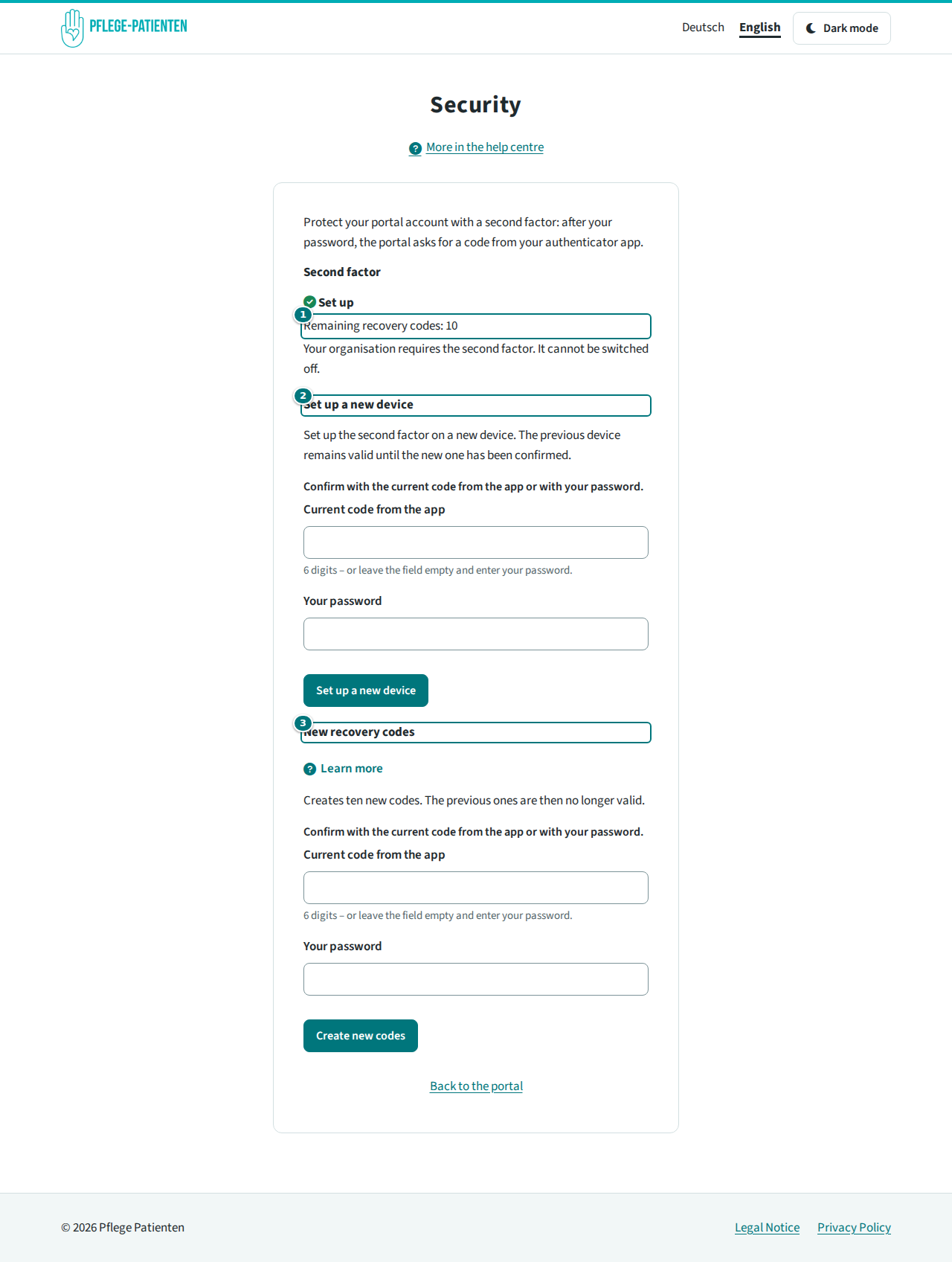
Managing the second factor - Switch off second factor is only available if your organisation does not require it.
Device lost and no codes left? The administrators of your organisation can reset the second factor under “Settings” → “Team” → “Reset 2FA” – if you also work for another organisation or through an association (called “umbrella organisation” in the portal), only the operator does this. You then set it up again at your next sign-in.
Common problems
- “The code is invalid” – check that the time on your smartphone is set automatically, and enter the code currently shown.
- “Too many attempts” – wait a few minutes and try again.
- The setup has expired – start again; a QR code is only valid for a short time.
How the administrators require the second factor for the whole team is explained after signing in, in the help centre article “How do I manage the settings of the organisation?”.